App User Guide
Everything you need to manage your student's lessons, swaps, and makeups, all in one place.
Miss Melanie's Music Studio
Piano, woodwind, and brasswind lessons
A Message from Melanie
Dear families,
Teaching your children and a few of you as well, is the joy of my working life. Watching a student travel from first notes to real music never gets old, and building that year after year with each family is why I do what I do.
For a long time I ran the studio's scheduling by hand and by heart: a text here, a phone call there, an email chain to sort out a cancellation or find a makeup time. I never wanted to be rigid, so I kept everything informal. But as the studio has grown, that informal approach quietly took over more and more of my evenings and weekends. Last-minute changes, open-ended cancellations, and all the back and forth to coordinate them were taking time and energy I would far rather pour into preparing and teaching lessons. In an average week, I spend 10 to 15 hours, mostly after the last lesson has ended, coordinating makeups and emailing. This is on top of a full teaching schedule of over 40 hours a week across 53 students. I also came to realize that "anything goes" is not actually fair. It is not fair to the students who plan ahead, to the families waiting for an open time, or to me.
So I have done two things. First, this app: a simple home for your family's schedule, where you can see your lessons, cancel or reschedule, swap times with another family, and claim makeup times yourself, with no phone tag and no waiting on me to reply. Everything lives in one place and is visible to both of us.
Second, for the first time I have written the studio's policies down, the expectations I sometimes communicated verbally when a student signs up, but never put on paper. You will find them in the studio's Cancellation & Reschedule Policies, available on the studio website under Studio Policies, covering how cancellations, makeups, and scheduling changes work. They take effect in Fall 2026. They are not meant to be strict for their own sake. They are meant to be clear, fair, and sustainable, so that I can keep giving every student my very best.
None of this changes what matters most: the music, and the relationship we build in each lesson. If anything, handling the logistics cleanly means more of my attention lands exactly where it belongs, on your child. Please take a few minutes to read through this guide, and never hesitate to reach out if anything is not clear.
With gratitude, and real excitement for the year ahead,
Melanie
Yes
No — need another time
Yes: you describe briefly what happened, then the options come one at a time: switch to online, find another open time, and try a swap if there is still time for the other family to answer. If none of those works, you choose whether to cancel the lesson or keep it. Canceling puts your student on the waitlist for a makeup when your student earns makeups. Melanie always understands that real emergencies happen, and you will never be penalized for one. Even then, please cancel in the app so your student goes on the waitlist automatically. The app is simply how the studio keeps every makeup fair and organized. It is never a barrier to reaching Melanie in a true emergency.
No: the studio does not have a makeup policy for last minute changes that aren’t emergencies. You can switch an in-studio lesson to online before it starts, or request a swap if there is still time for the other family to answer. If neither works, you choose whether to cancel the lesson, with no makeup, or keep it.
Texts are not sent overnight, so a swap requested late at night reaches the other family in the morning. When that would leave them too little time before the lesson, the app does not offer a swap.
Texts and notifications
Studio communications. Along with this app, the studio uses a simple text-message (SMS) service to let you know when a waitlist open time comes up, to pass along swap requests from other families, and to confirm your makeups. Melanie will still send individual emails for other matters, but you should expect most scheduling messages to come by text.
When there is a swap offer for you, an open makeup time, or a confirmation, the studio sends you a text. Tap the link in the text to go straight to the action, with no login needed. A text about a teaching window longer than 2 hours has no link: open the app to book.
Texts come from (952) 649-6248, an automated number that Melanie does not monitor. If you need to reach her, please call or text her directly. Reply STOP anytime to stop texts, or HELP for help.
User's Guide for the App
A short walkthrough of the app, screen by screen. Jump to any section below, or use the arrows at the bottom to move through them in order.
A quick three minute video on the app's key features.
Signing in
The studio app signs you in with a magic link. There are no passwords to set or remember, ever. Each time, you enter your email and you'll receive a one-time sign-in link in your inbox. Tap that link and you're in.
First-time login
On the studio website, tap Student Portal in the top menu, then Parent / Student Login. Enter your email, then tap the sign-in link you'll receive in your email. The very first time you login, you will also be asked for your family's Family Code, which Melanie gives you. Enter it once and your account is linked to your family. One login covers all of your children.
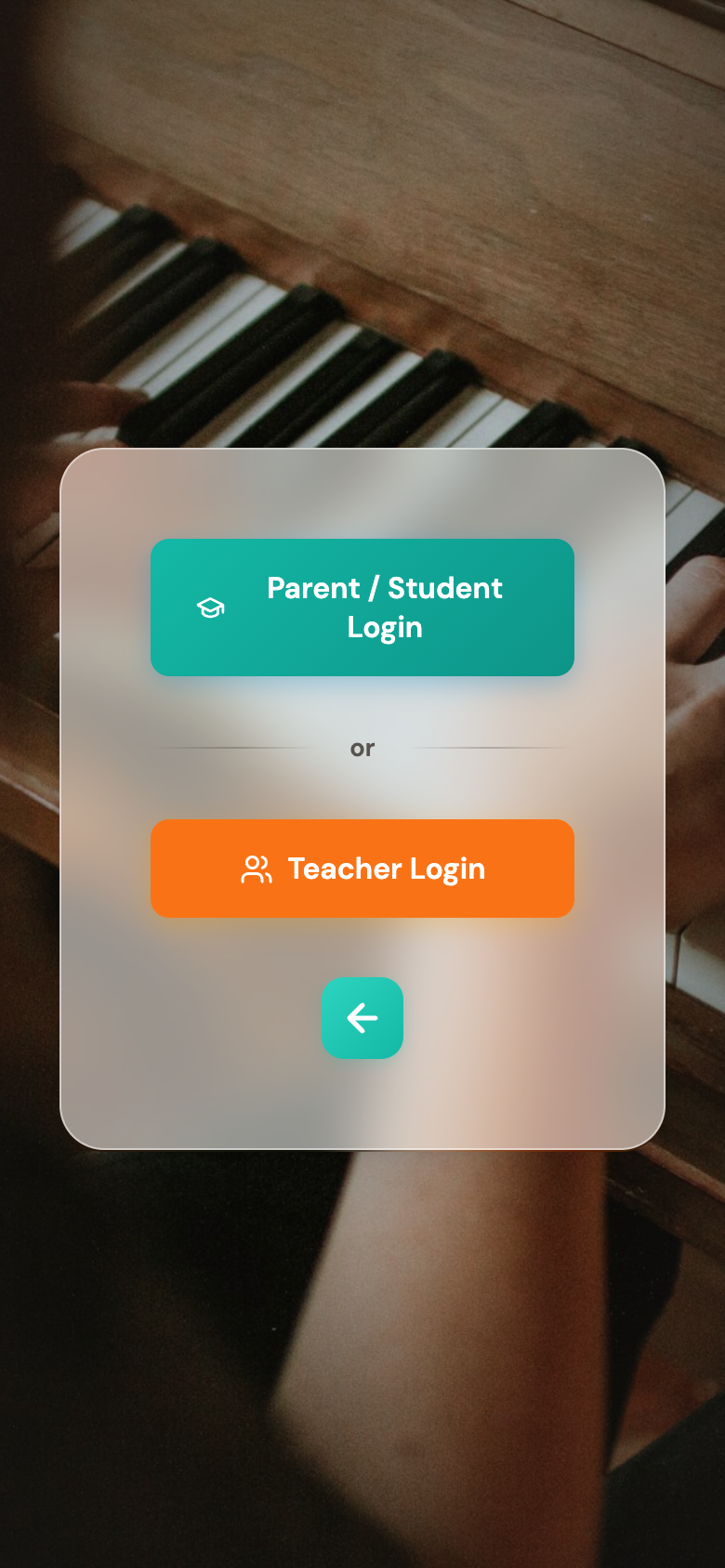 Tap Parent / Student Login
Subsequent logins
After that first time, signing in is just the magic link: enter your email, tap the link you'll receive, and you're in. No security code and no password needed.
More than one guardian
Every guardian in the system can sign in with their own email and will see the same family schedule. Texts from the studio go to one mobile number for the whole family: the number entered when your family agreed to texts. To change it, ask Melanie, and the app will ask for the number again at your next sign-in. If you would like another guardian to receive Melanie's emails, let her know that person's name and email address.
Setting your text and email preferences
On your first sign-in you can add your mobile number and choose whether to receive text alerts and email. Text alerts are how time offers reach you quickly, when a swap is available or a lesson time opens up, so we recommend turning them on.
Your home screen
When you sign in, you are taken to your dashboard, which has five tiles:
- Calendar: your next lesson is displayed at the bottom of the tile. Click the tile to view your calendar, lessons, open times and make changes. This is where you would go if you wanted to change a lesson that's a few days out, when you are planning ahead.
- Waiting on You: anything that needs your answer, like a swap another family offered you.
- Activity: your history of swaps, cancellations, and makeups.
- Recitals: register for a recital and see its fees and payments.
- Profile: your contact details and settings.
A small dot on a tile means something new is waiting for your attention.
 Your home screen
Your calendar
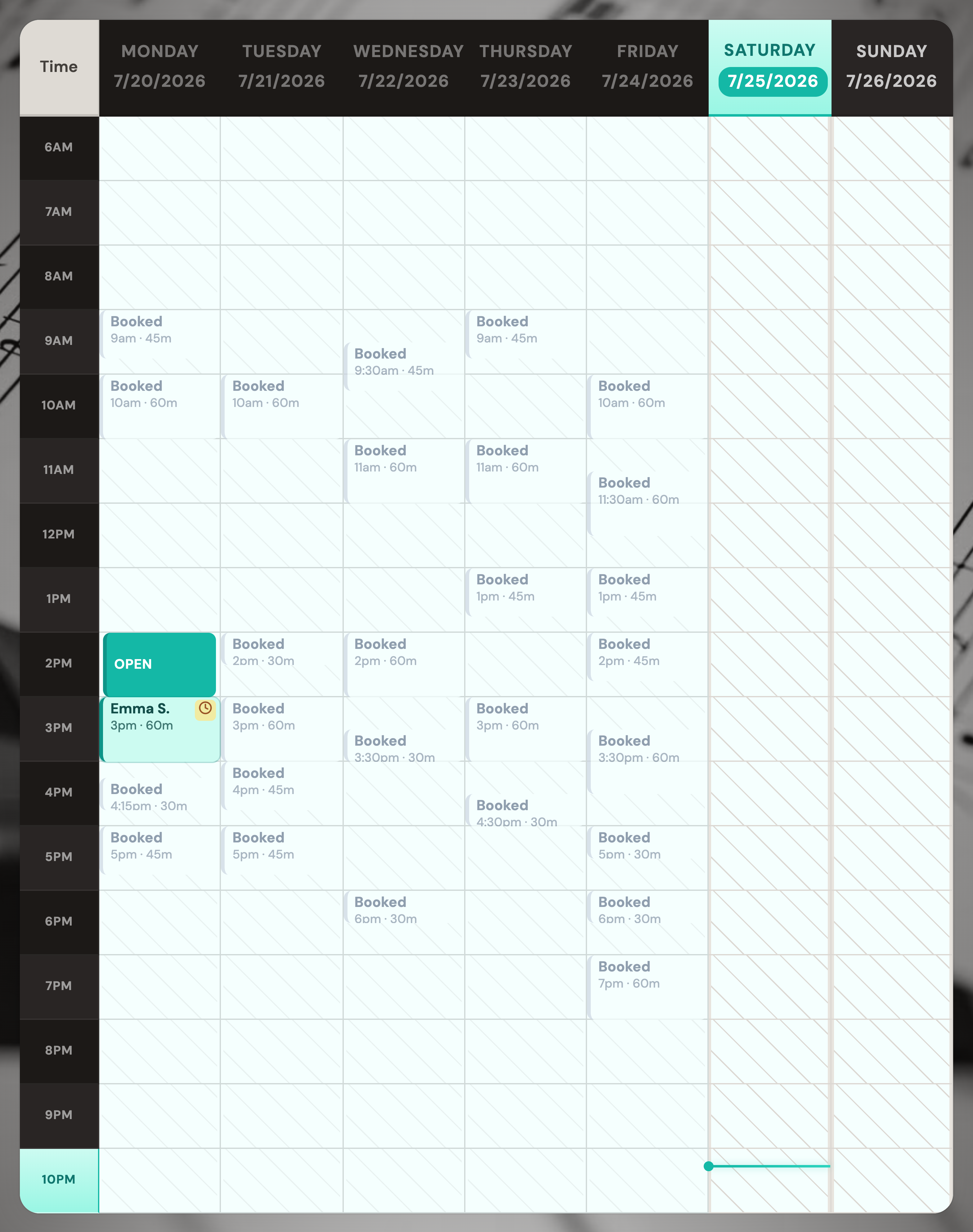
The calendar shows a week at a glance. Here is what you will see:
- Your lessons appear with your student's name.
- Times another family holds are marked "Booked". For privacy, you never see other families' names.
- Times Melanie has free show as green boxes labeled "Open", with the start and end of the open time, "Open: 7:45 - 9:30". On a phone the box reads "Open" alone. An open time Melanie has marked online only carries the Wi-Fi icon that marks an online lesson; a lesson moved into it is held online. You can move a lesson into an open time.
- Each of your lessons is marked Online or In-studio.
- A pink Recital pill in a day's heading marks a recital your student is registered for. See Recitals.
Coming back to the app after 15 minutes or more reloads the schedule, so open times and swap offers are current.
To make a change, tap your student's lesson. That opens the options covered in The Big Change (switch to online, move to an open time, swap, or cancel).
While a swap you asked for is waiting for an answer, that lesson shows a small clock and cannot be changed. Tap it to see the request and Withdraw request; once the request is withdrawn, the lesson’s options return.
If your student books lessons one at a time (Melanie sets this up), tap an "Open" time to book a lesson into it. The longest length that fits is already selected; pick a shorter one and a start time if you prefer, then online or in-studio (a time that can only be online books online). The lesson is booked straight away. You also get a text each time a new time opens, with a link that books it without signing in. The first time, if several times are already open, you get one text instead, asking you to look in the app. If your student is owed a makeup as well, you are asked first whether to use the makeup or book a new lesson. Canceling one of these lessons adds a makeup only if Melanie has set your student up for makeups.
Add to my calendar
Tap Add to my calendar at the top of the calendar, choose Apple Calendar or Google Calendar, and confirm. Your lessons and registered recitals then appear in your own calendar and update on their own. A change can take several hours to appear there, so the app always has the latest. The link is private to your family and can only show information; please do not share it.
Waiting on You
The Waiting on You tile is where anything that needs your answer shows up, most often a swap another family has offered you. When something is there, you will see a dot on the tile on your home screen.
Open it to see the details, then accept or decline. These offers are time-sensitive: if you do not reply, the request simply expires on its own and nothing about your lesson changes.
When there is nothing to answer, the tile reads "You're all set."
 A swap another family has offered you
Activity
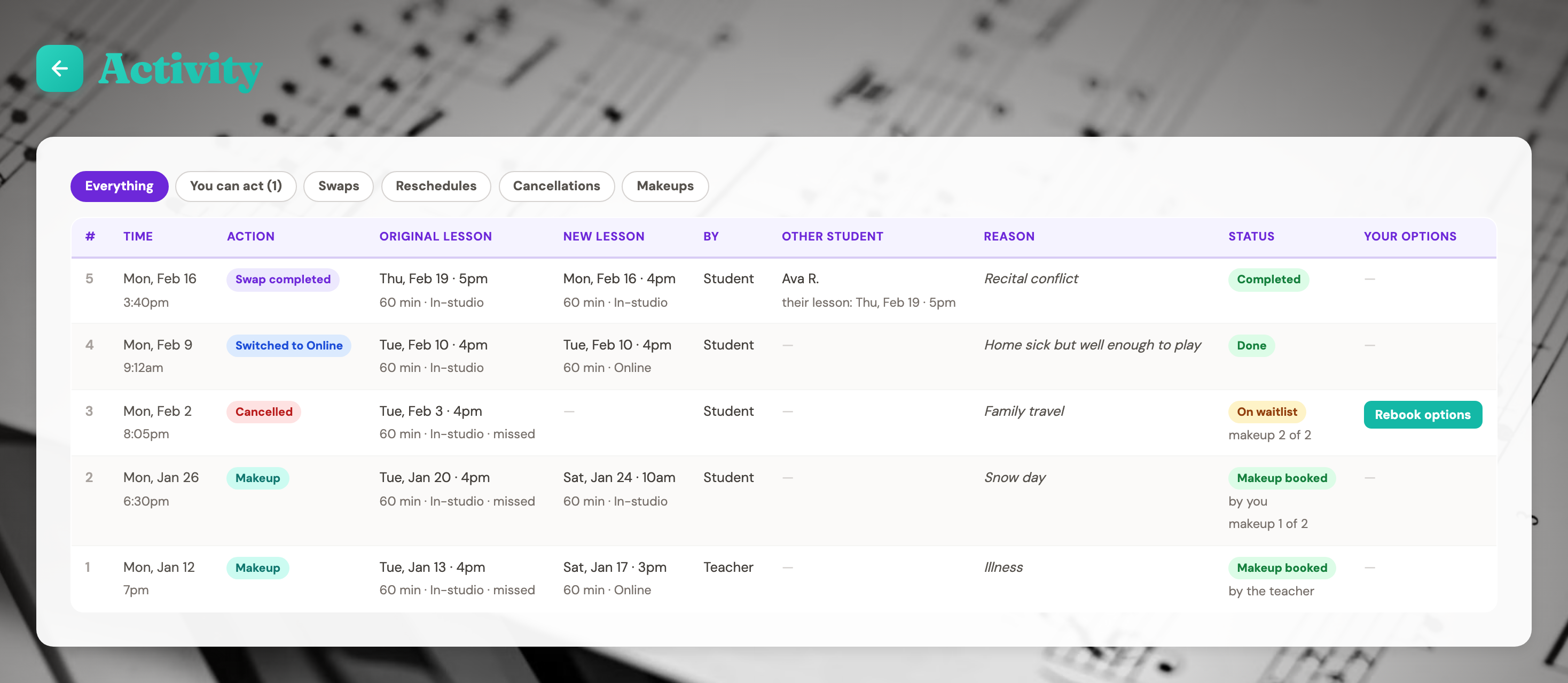
The Activity page is your full history: every swap, reschedule, cancellation, and makeup, with the date, what happened, and who did it. Use the filter chips at the top to narrow the list:
- Everything every change, newest first.
- You can act only items that still need something from you, like rebooking a canceled lesson.
- Swaps trades of lesson times with another family.
- Reschedules lessons you moved to a new time, and lessons switched to online.
- Cancellations lessons you canceled, and whether a makeup is on the waitlist.
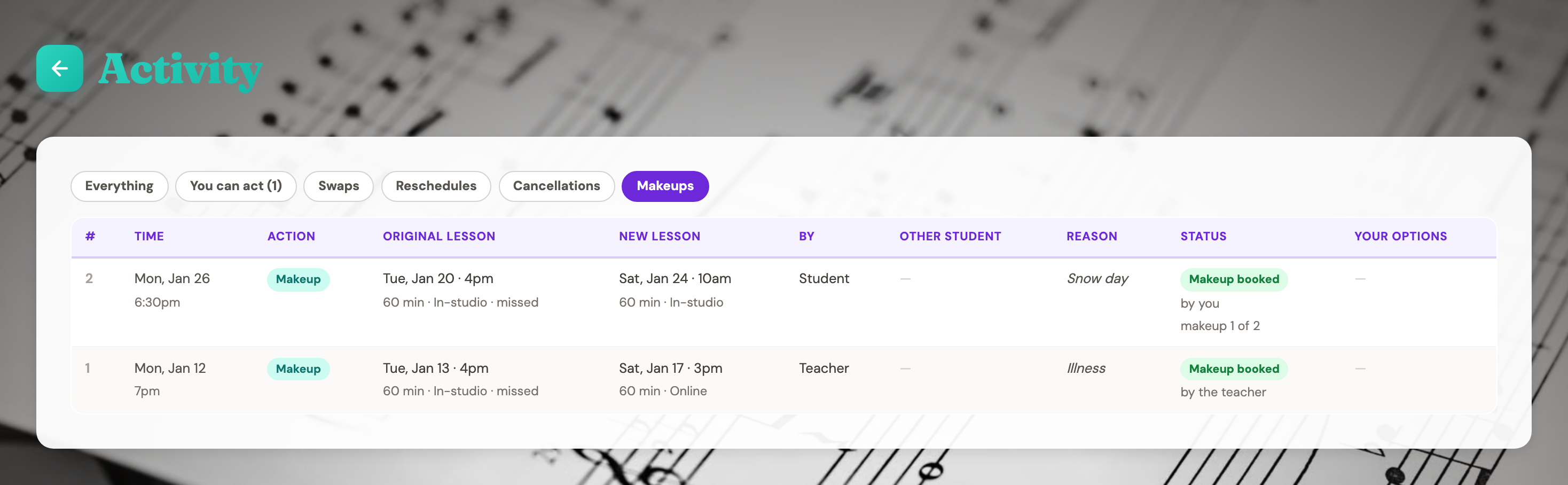
- Makeups makeup lessons you have booked, with your count for the term.
If a past change still needs something from you, like rebooking a canceled lesson, a button appears in the Your Options column.
Makeups and the waitlist
When you cancel a lesson, your student automatically joins the makeup waitlist. You do not need to do anything else. As open times come up, you will be notified and can claim one right in the app.
How an open time is offered depends on timing:
- If the open time is further out than the next day Melanie teaches: students on the waitlist get a 2-hour head start on the open time before it becomes available to everyone in the studio. The open time is offered to everyone on the waitlist by text message. To keep it fair, and not simply give it to whoever sees the text first, the messages go out at fixed times, in the morning if an open time came up the night before, and in the evening if it came up during the day. For the next 2 hours the open time does not appear on any family's calendar, and the link in the text asks "does this time work for you?". At the end of the 2 hours the system confirms the student highest in the waitlist order among everyone who answered yes, and texts the result to everyone who answered. If nobody answers yes, the open time appears on every family's calendar and anyone can book it. If your student is the only one on the waitlist, there is no wait: tapping the link books the lesson straight away and a confirmation text follows. If the time is online only, the text says so.
- If the open time is today or the next day Melanie teaches: there is no time to wait 2 hours, so students on the waitlist get a 30-minute head start instead. The open time is texted to everyone on the waitlist straight away, or at the morning text time if it opened in the evening or overnight. For the next 30 minutes the open time does not appear on any family's calendar, and the first student to confirm through the link gets it. After that it also appears on every family's calendar, and whoever books it first gets it. An open time that would start less than an hour after it could be texted is not texted at all: it appears on every family's calendar straight away.
- If Melanie opens a teaching window longer than 2 hours: you get one text with no link, for example "An 8 hour 15 minute teaching window beginning 7:00 AM on Mon 10/05/26 has been opened." When several open together, one text lists their dates. Open the app, find the window on your calendar and book your makeup into whatever part of it suits you. It is first-come, first-served.
Melanie will help arrange up to 2 makeups per student each term, and will do her best to clear the waitlist before the term ends. Full details are in the Cancellation & Reschedule Policies, under Cancellations and makeups.
You can see every makeup at a glance here in Activity: tap the Makeups filter to show just your makeup lessons, each with its original time, the new time, and your count for the term (for example, "makeup 1 of 2").
Your profile and account
Your Profile holds your contact information, your communication preferences, and your Family Code.
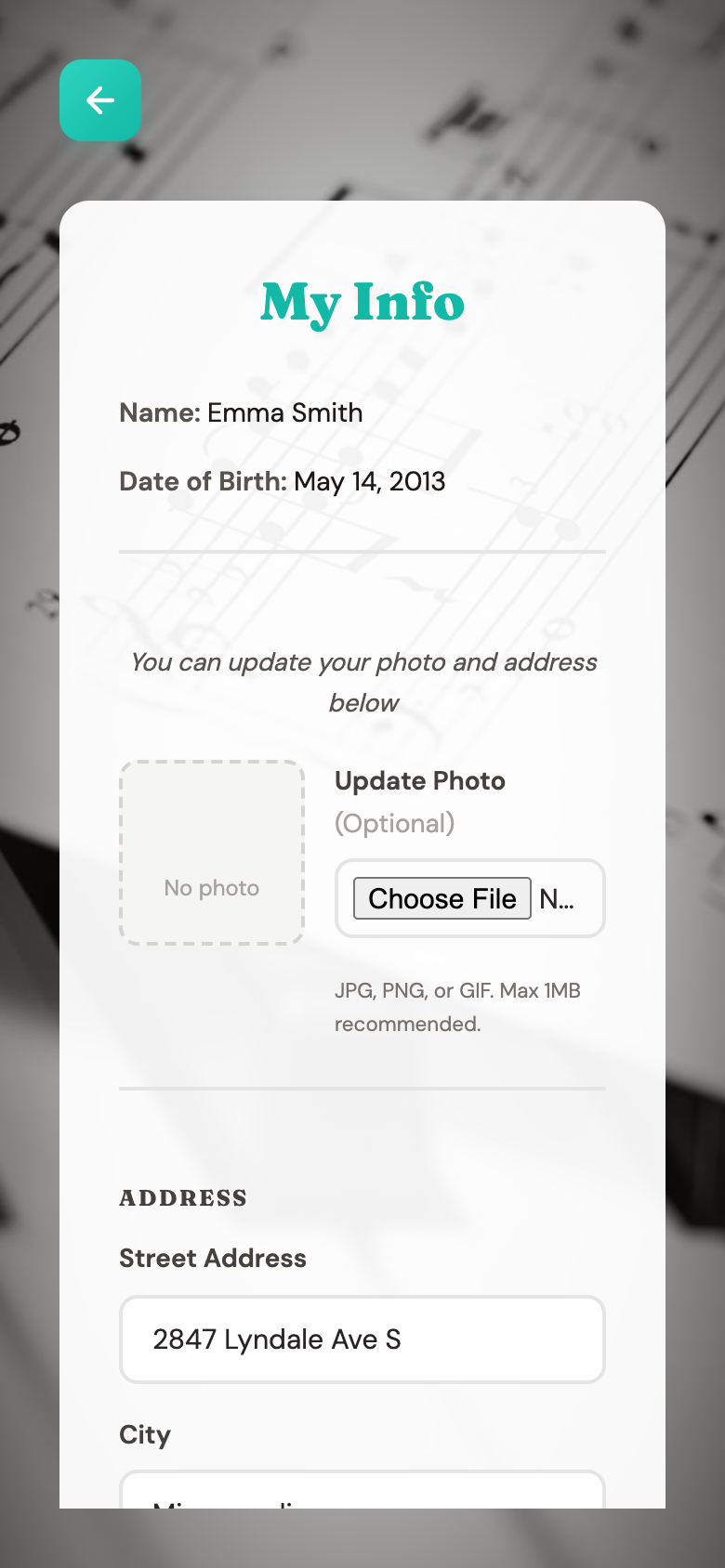 Your profile
Recitals
A recital that takes registrations shows a Register button under Key Dates on the studio website, and is listed in the app under the Recitals tile on your home screen.
Registering
Tap Recitals, then Register for a recital. Choose the student if you have more than one, tick one or more recitals, and tap Register. A box lists each recital, its fees and the date they are due; tap Register in the box to finish. One email confirms all the recitals registered together. For another student, register again. Tapping Register on the website asks you to sign in first, then opens this screen with that recital chosen. Registration closes at the end of the recital's Register by date.
Once sent, a registration can be changed or canceled only by Melanie. Recital fees are not refunded.
On the calendar
A pink Recital pill appears in the heading of the recital day. Tap it for the student, piece, venue and time. To stop showing the pill for that recital on this device, tick Don't show this reminder on the calendar again before closing the box.
Fees
The Recitals screen lists each upcoming recital your students are registered for. Until Melanie sets your student's fee, it shows the recital's fee schedule; once she sets it, the fee and the date it is due; once she records your payment, the amount and the date paid. Fees are paid in cash to Melanie, recital by recital, by each recital's Register by date. The Recitals tile on your home screen shows the fees due next.
Emails
The studio may email you when a registration is received, when a payment is recorded, before a fee is due, and before the recital.
Key dates and staying in touch
Recitals, contests, and festivals are posted under Key Dates in the top menu of the studio website. For anything the app does not cover, email Melanie at [email protected].
Questions and troubleshooting
Check your spam folder. The link expires after about an hour, so if it has been a while, request a new one. Make sure you are using the email address Melanie has on file for you.
That is your family's Family Code, which links your account the first time you sign in. Ask Melanie for it.
One login covers your whole family. You will see each of your children, and you can switch between them from your dashboard.
You sign in the same way, with your own email and your Family Code.
You may have replied STOP to an earlier text; reply START to turn them back on. Otherwise contact Melanie and she can reset your preferences. Then log in to the app and you will be prompted to opt in to texts and email from the studio.
No. Texts come from (952) 649-6248, an automated number that Melanie does not monitor. If you need to reach her, call or text her directly.
Cancel the lesson in the app so your student goes on the waitlist. From 10:00 pm the night before the lesson, the app first asks "Is this an emergency?"; answer Yes. You will never be penalized for a genuine emergency (see the Cancellation & Reschedule Policies, Cancellations and makeups). There is no need to call Melanie; the app will notify her by text.